If you want to create clean skin showcases or cinematic screenshots in Counter-Strike 2, you don’t need dozens of complicated settings. Most players search for simple solutions like how to remove HUD in CS2, how to enable third person, or how to blur the background, and all of that can be done with a small set of essential console commands.
This guide focuses only on the most important CS2 inspect commands used for skins, screenshots, and content creation.
How to enable the console in CS2?
Open CS2.
Go to Settings > Game.
Find Enable Developer Console (~) and set it to Yes.
Press the ~ key in-game to open the console.
This allows you to use commands for config, binds, or testing skins in different scenarios.
Enable Cheats Before Using Commands
Most advanced inspect and camera commands require cheats enabled. This is typically used in offline servers or private matches.
sv_cheats 1
Remove HUD for Clean CS2 Screenshots
One of the most common things people look for is how to hide the interface for skin screenshots. Removing the HUD gives a clean, distraction-free image.
cl_drawhud 0
This is essential for anyone creating CS2 skin showcases, thumbnails, or marketplace visuals.
Hide Weapon Model for Minimalist Shots
If you want a fully clean frame or background-focused composition, you can remove the weapon model entirely.
r_drawviewmodel 0
This is often used together with no HUD for ultra-clean screenshots.
Enable Third Person to Inspect Skins
Third person view is widely used for cinematic shots and inspecting how skins look on the player model.
thirdperson
This command is frequently searched as part of queries like how to inspect skins in third person in CS2 or how to view character model with skins.
Unlock Camera Angles for Better Control
By default, camera movement is limited. Unlocking it allows you to adjust angles more freely when inspecting skins.
cl_lock_camera 0
This is especially useful when trying to create unique perspectives for screenshots.
Adjust Viewmodel Position (Hand Distance)
Changing the position of your hands and weapon helps improve composition and framing.
viewmodel_offset_x 2
viewmodel_offset_y 2
viewmodel_offset_z -2
This is commonly used when people search for how to change viewmodel in CS2 or how to move weapon position for screenshots.
Add Blur Background (Depth of Field Effect)
For cinematic CS2 screenshots, background blur is one of the most requested effects.
r_dof_override 1
r_dof_override_near_blurry 40
r_dof_override_far_blurry 40
This setup simulates depth of field and creates a blurred background, making skins stand out more clearly.
Use Free Camera for Cinematic Angles
Free camera gives you more flexibility when positioning your shot.
cl_freecam 1
It is often used in combination with third person and unlocked camera angles.
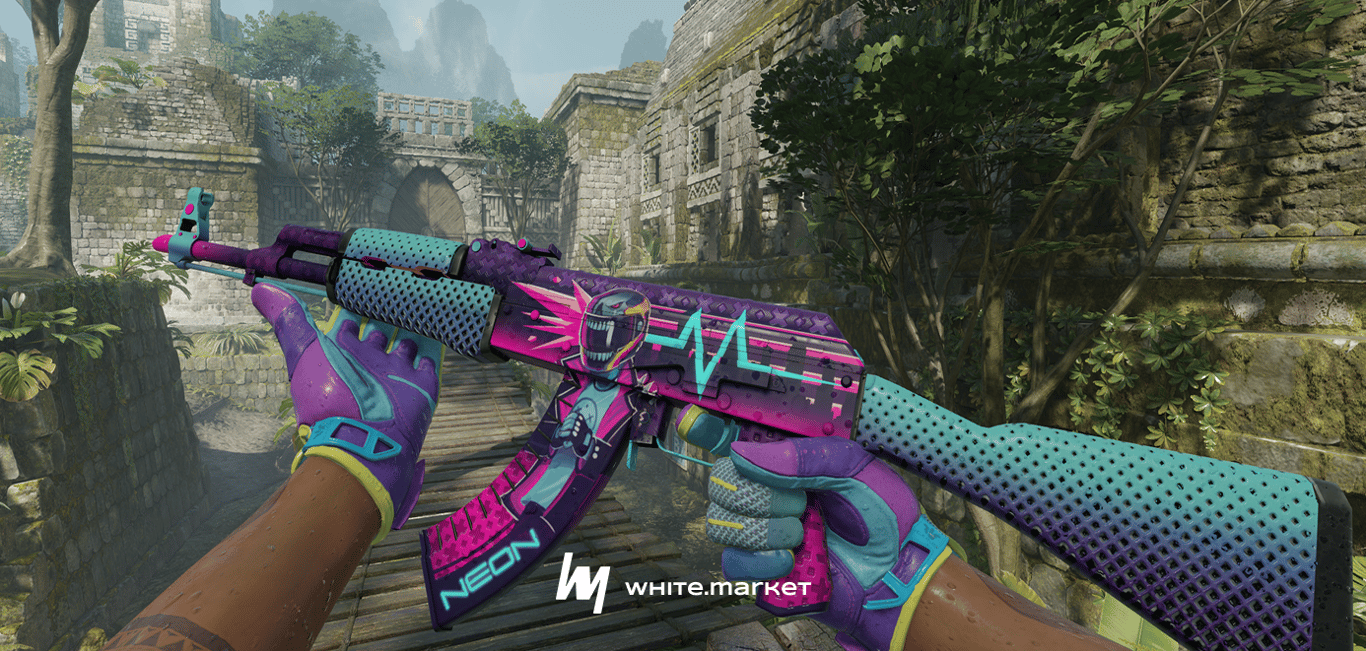
Slow Down Inspect Animation
If you want to capture perfect frames during inspect animations, slowing down time helps significantly.
host_timescale 0.3
This is one of the most useful commands for detailed skin inspection screenshots.
Remove Weapon Sway for Stable View
To avoid shaking and movement while inspecting skins, disable weapon sway.
cl_wpn_sway_scale 0
This makes screenshots cleaner and more professional.
Increase Field of View for Cinematic Look
Adjusting FOV helps create a more dynamic and cinematic perspective.
fov_cs_debug 120
Higher FOV values are often used in CS2 cinematic screenshots and skin showcase videos.
Where to Get Skins?
If you are creating content or building an inventory for showcases, using alternative marketplaces can be more cost-effective than Steam. Platforms like white.market are often used because prices are typically lower and fees are reduced, which makes it easier to get high-quality skins for screenshots without overspending.
white.market is a popular option because:
Skins are often listed below Steam prices
A new trading terminal simplifies buying and selling
Advanced filters allow sorting by color, price, and float
The platform is trusted by millions of users
This is particularly useful when assembling themed loadouts, as you can quickly find skins that match your color scheme.
FAQ
What map is best for CS2 skin screenshots
For clean and professional screenshots in Counter-Strike 2, players often use maps with neutral lighting and minimal visual noise. Workshop maps designed for skin showcase or simple maps like Mirage (empty server) work best.
How to make skins look brighter in CS2 screenshots
Use fullbright settings or choose maps with strong lighting. Bright environments help highlight skin details, patterns, and finishes, especially for knives and gloves.
Why do CS2 screenshots look different from in-game
Screenshots can look different due to resolution, post-processing, or lighting conditions. Higher resolution and adjusted FOV usually make skins appear sharper and more detailed.
How to take high quality screenshots in CS2
Use higher resolutions such as 1440p or 4K, disable UI elements, and position the camera manually. This approach is commonly used for CS2 skin showcase content and marketplace listings.
How to take screenshots without losing quality in CS2
Avoid compression by using native screenshot tools like Steam or external software. Higher resolution settings also reduce quality loss.
What FOV is best for CS2 screenshots
Higher FOV values are typically used for cinematic shots, while lower FOV works better for focused close-ups of skins. The choice depends on whether you want dramatic perspective or detail accuracy.
Conclusion
You don’t need complex setups to create high-quality skin screenshots in Counter-Strike 2. Most results come from a small group of commands that control HUD visibility, camera angles, viewmodel positioning, and visual effects like blur.
Mastering these basic inspect commands allows you to consistently create clean, cinematic visuals for skins, whether for personal use, social media, or marketplace listings.