Whether you want a cleaner main menu, a pure black background for skin screenshots, or just a different vibe when inspecting your loadout, CS2 lets you change both the main menu background and the skin inspect background with a couple of simple steps. This guide covers exactly how to do it — using one console command and one in-game setting — and explains how the same method gives you a fully black background for high-quality skin photography.
Why Change the CS2 Background?
The default CS2 main menu background is a dynamic map scene that can feel visually busy — particularly if you spend time inspecting skins or taking screenshots. A clean background makes everything from browsing your inventory to photographing your crafts significantly easier and more visually satisfying.
The same setting that clears the main menu background also affects the background shown during the skin inspect animation — which is what most players are actually after. A plain or fully black inspect background makes skin details, sticker crafts, and knife finishes dramatically easier to see and photograph cleanly.
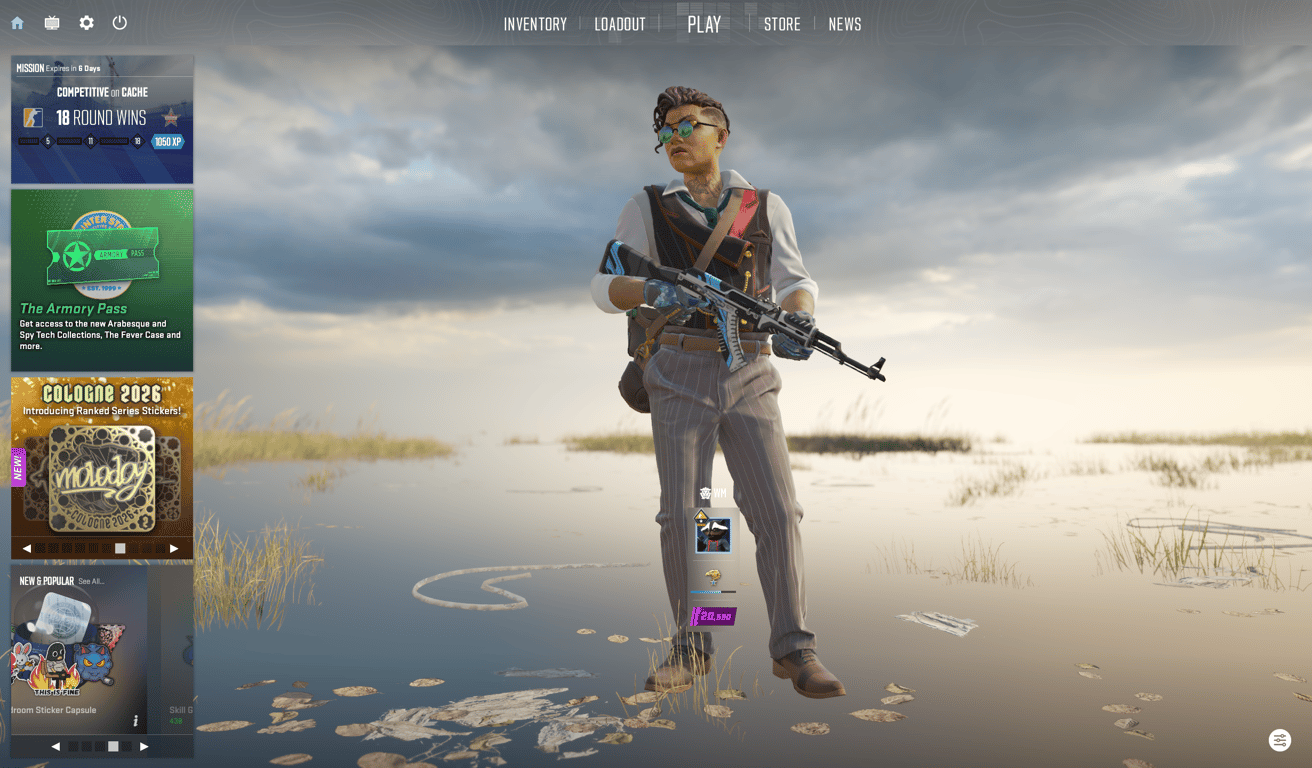
Step 1 — Enable the Developer Console
Before using any console command, make sure the developer console is enabled in your CS2 settings.
Go to Settings in the main menu. Select the Game tab. Find Enable Developer Console and set it to Yes.
Once enabled, press the tilde key (~) at any point to open the console.
Step 2 — Enter the Console Command
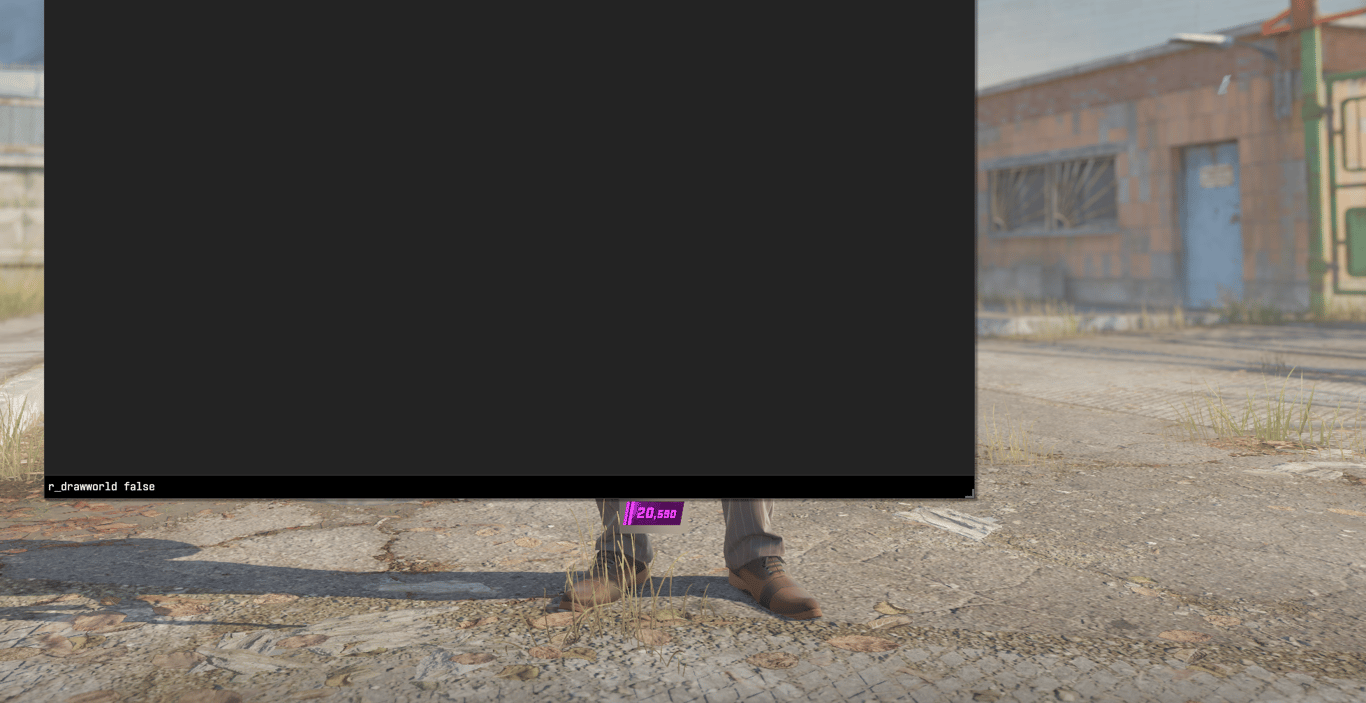
Open the console with ~ and type the following command exactly:
r_drawworld 0
Press Enter to confirm. This command disables world geometry rendering — in practical terms, it removes the background map geometry from the main menu and the inspect screen, leaving a clean base instead of the usual map scene.
To reverse the effect at any time, open the console and type:
r_drawworld 1
This restores the default background rendering immediately.
Step 3 — Change the Background Map
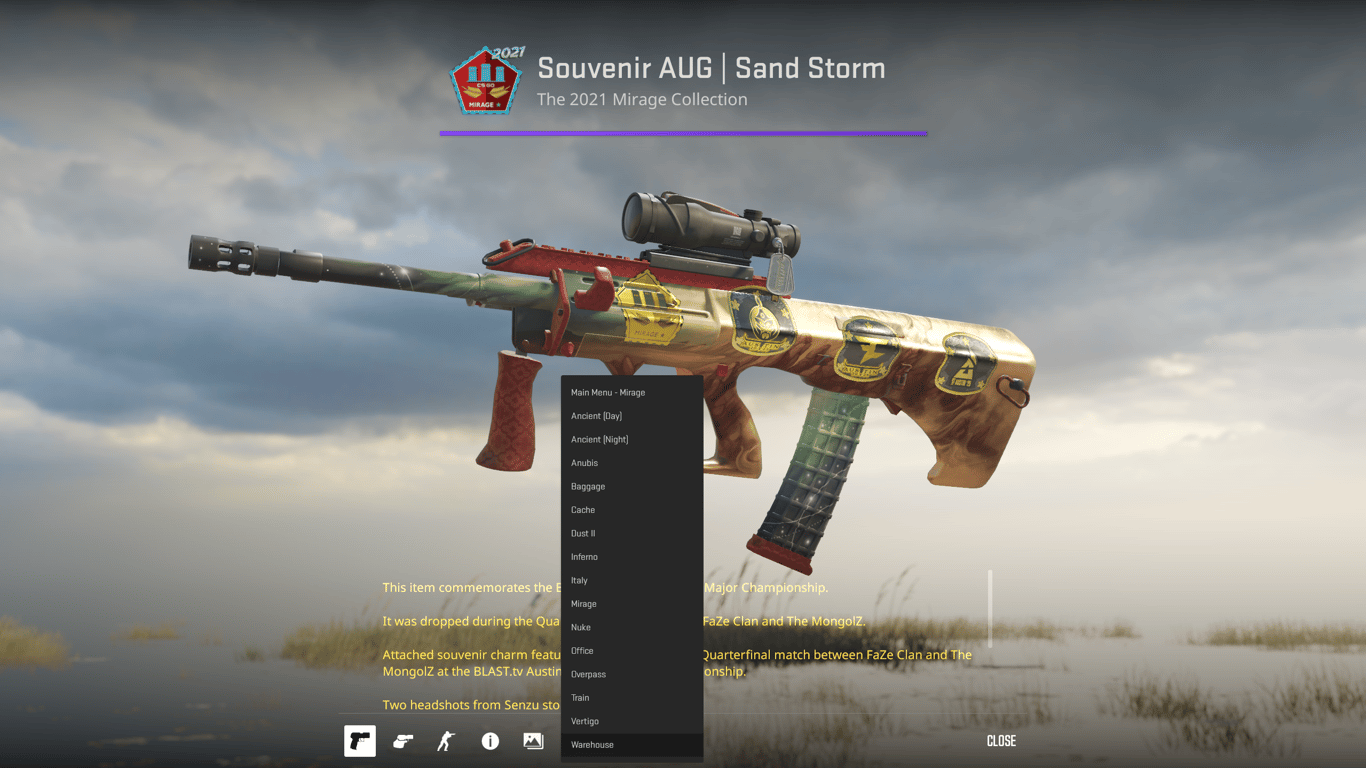
With r_drawworld 0 active, you can go further by selecting a specific map as your main menu scenario — which determines the base environment that remains visible even with world geometry disabled. Some maps produce a lighter neutral background, while others produce an almost completely black result ideal for skin photography.
To change the background map:
Open CS2 and go to the main menu. In the bot right corner, click the Settings icon. Look for the Main Scenario or Background Map setting. From the dropdown, select Baggage, Cache, or any other map listed.
Which map to choose:
Baggage — produces a clean light background that is ideal for skin inspection and screenshots. One of the cleanest options for photography.
Cache — similarly, with minimal visual interference.
Other maps — each map produces a slightly different base tone. Experiment with different options to find the background color and feel that works best for your use case.
Combined with r_drawworld 0, selecting Warehouse gives you a background that is effectively full black — the cleanest possible environment for inspecting skins and capturing screenshots.
How This Affects the Skin Inspect Background
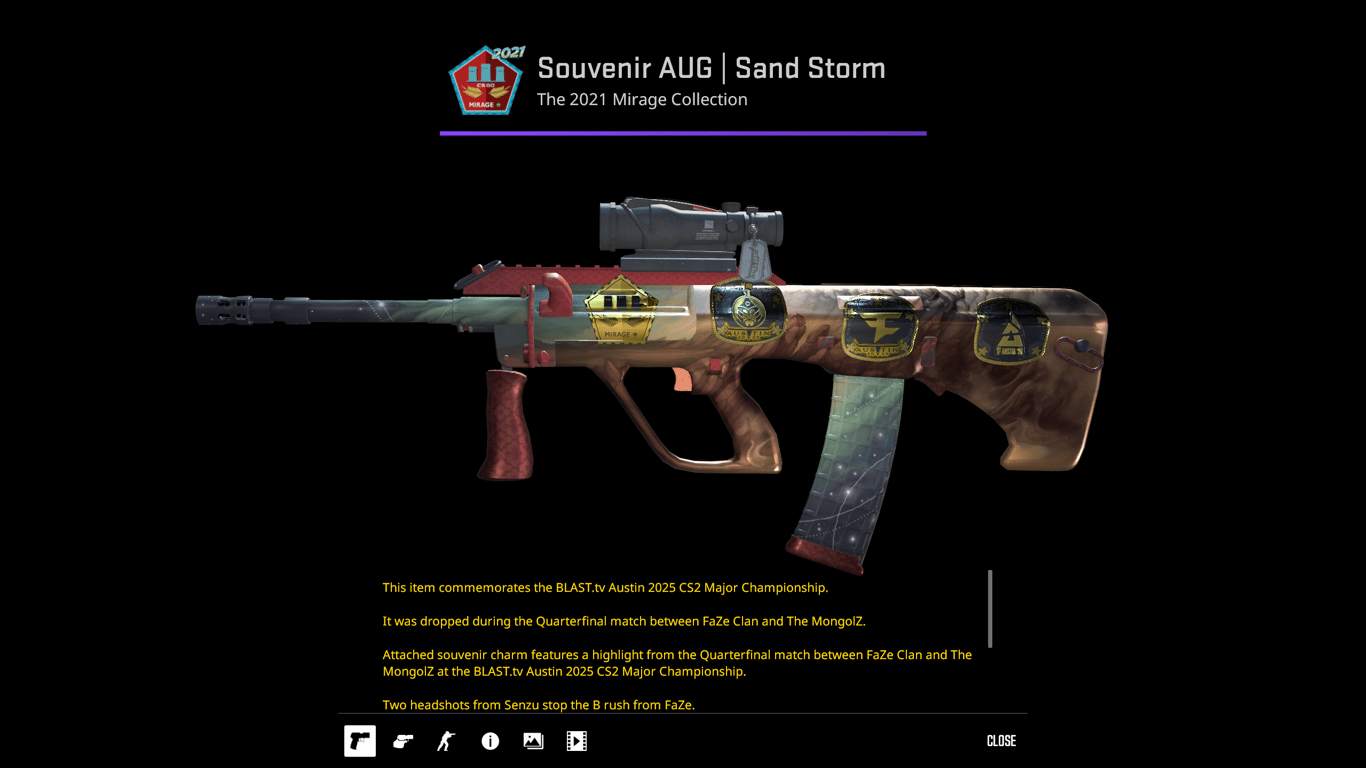
The same background setting that applies to the main menu also carries over to the skin inspect screen. When you right-click any skin in your inventory and select Inspect, the weapon renders against whatever background your current map scenario produces.
With r_drawworld 0 active and Baggage or Cache selected as your background map, this is one of the best ways to see knife finishes, sticker crafts, and glove patterns without any background noise competing for visual attention.
For players who want to take screenshots of their skins, this black inspect background eliminates the need for external photo editing to isolate the weapon — the clean background does that work for you in-game.
Taking High-Quality Skin Screenshots
Once your background is set up, the inspect screen becomes a proper photography environment for your CS2 inventory. A few additional tips for getting the best results:
Use the in-game inspect animation controls to pause the weapon at the angle you want. The rotate controls in the inspect screen let you position the skin precisely before capturing.
Screenshots taken in the inspect screen with a black background can be used directly for inventory showcases, social media, craft documentation, or trade listings — the clean background makes them immediately usable without editing.
For a complete guide on how to get the most out of CS2 skin photography — including the best console commands for removing HUD elements, adjusting blur, and optimizing lighting — white.market has a full guide here that covers every command and setting in detail.
Reverting to Default Settings
If you want to return to the standard CS2 main menu appearance at any time:
Open the console (~) and type r_drawworld 1 and press Enter. Go back to Settings and change the Main Scenario back to your preferred default map.
Both changes revert immediately with no restart required.
FAQ
How do I change the background in CS2 main menu?
Open the developer console with ~ and type r_drawworld 0 to remove world geometry. Then go to Settings in the top right corner of the main menu, find the Main Scenario or Background Map setting, and select Baggage, Cache, or another map. The two steps together produce a clean or near-black background.
What does r_drawworld 0 do in CS2?
r_drawworld 0 is a console command that disables the rendering of world geometry in CS2. In the main menu context, this removes the background map scenery, leaving a clean base environment. It affects both the main menu background and the skin inspect background simultaneously.
How do I get a black background in CS2 skin inspect?
Use r_drawworld 0 in the console and set your background map to Baggage or Cache in the main menu settings. The combination of disabled world geometry and a dark base map produces a near-black background in the inspect screen — ideal for skin photography and viewing sticker crafts clearly.
Does changing the background map affect gameplay?
No. The background map setting only affects the main menu and inspect screen. It has no impact on in-game performance, settings, or gameplay in any mode.
How do I open the developer console in CS2?
Go to Settings, select the Game tab, and set Enable Developer Console to Yes. Once enabled, press the tilde key (~) at any time on the main menu or during gameplay to open the console.
How do I revert to the default CS2 background?
Type r_drawworld 1 in the console and press Enter. Then go back to Settings and change the Main Scenario back to the default. Both changes take effect immediately.
Which background map gives the darkest inspect background in CS2?
Baggage and Cache are the most commonly recommended maps for producing a dark or near-black inspect background when combined with r_drawworld 0. The exact tone varies slightly, so try both and compare which works best for your use case.
Can I use the black background to take screenshots of my CS2 skins?
Yes — the black inspect background created by r_drawworld 0 combined with Baggage or Cache is one of the best in-game environments for skin photography. The clean background eliminates visual noise and makes sticker crafts, knife finishes, and glove patterns clearly visible. For a complete guide to CS2 skin screenshots including HUD removal and lighting commands, see the white.market screenshot guide.
Does r_drawworld 0 work in CS2 in 2026?
Yes — as of 2026, r_drawworld 0 functions as described in the main menu and inspect screen. Console command availability is subject to change with game updates, so check current community resources if the command stops working after a future patch.