What Is a Viewmodel in CS2?
The viewmodel in Counter-Strike 2 refers to the visual representation of your weapon and character's hands as seen from your first-person perspective. In simple terms — it's everything you see in the corner of your screen when you're holding a gun.
One crucial thing to understand: the viewmodel is purely cosmetic from other players' perspectives. Changes you make to your weapon position, field of view, or hand placement are only visible to you. Everyone else will see your standard character model regardless of how you've set things up.
There is, however, one non-obvious competitive use for the viewmodel: grenade lineups. Because CS2 has no idle animations, your hand's on-screen position can serve as a visual reference marker when practicing and executing grenade throws.
Key fact: The viewmodel has no effect on hit detection or game mechanics. It purely changes what you see — but that visual feedback significantly influences comfort and consistency.
Why Viewmodel Settings Matter for Competitive Play
Default viewmodel settings in CS2 are rarely optimal for competitive performance. Here's why pro players — and serious ranked players — invest time in tuning their viewmodel:
Improved Visibility & Sightlines
Your weapon model occupies a real portion of your screen. Positioned poorly, it can block a corner where an enemy is camping. A well-configured viewmodel pushes the weapon to the periphery, maximizing the amount of useful screen space you have to spot enemies.
Consistent Crosshair Placement
When your weapon is stable and predictably positioned, your eye develops better muscle memory for crosshair placement. Reduced weapon bob and a fixed offset means less visual noise competing for attention with your actual target.
Better Recoil Control
Certain viewmodel positions make spray patterns easier to track and control. When you can see more of the screen and less of the weapon, reading and correcting your spray becomes more intuitive.
Personal Comfort
Long gaming sessions are demanding. A viewmodel that feels natural to you reduces cognitive load — you stop noticing the weapon and start focusing purely on the game. This might seem minor, but over hundreds of hours, it compounds significantly.
All CS2 Viewmodel Console Commands Explained
The most flexible way to configure your viewmodel is through the developer console. Here is a complete breakdown of every relevant command:
viewmodel_fov — Controls how zoomed-in the weapon appears (54–68, default 60)
viewmodel_offset_x — Moves weapon left/right (-2 to 2.5, default 1)
viewmodel_offset_y — Moves weapon forward/back (-2 to 2, default 1)
viewmodel_offset_z — Moves weapon up/down (-2 to 2, default -1)
viewmodel_presetpos — Preset positions (1, 2, 3)
cl_righthand — 1 = right hand, 0 = left hand
Best Viewmodel Settings for CS2 (2026)
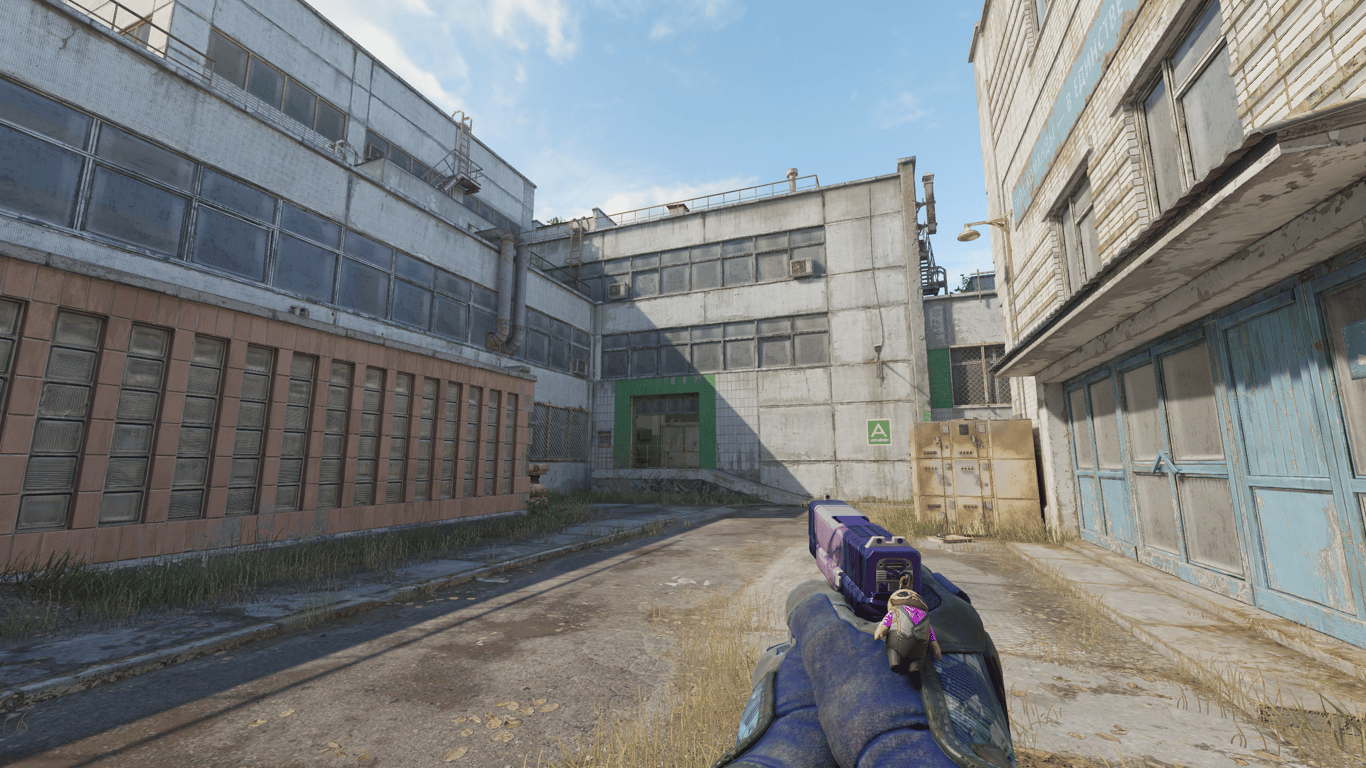
There is no single universally "best" viewmodel — the right configuration depends on your playstyle, monitor size, and what feels natural. That said, the following setups are the most commonly used by high-level and pro players for good reason.
Competitive Minimal Setup
This is the configuration most preferred by pro players. It pushes the weapon as far to the right and down as possible, clearing the center of your screen for better sightlines.
viewmodel_fov 68
viewmodel_offset_x 2.5
viewmodel_offset_y 0
viewmodel_offset_z -1.5
viewmodel_presetpos 3
cl_righthand 1
Balanced Setup
A slightly more centered weapon position — good for players who prefer to keep the gun visible for recoil reference while still gaining screen space over default settings.
viewmodel_fov 68
viewmodel_offset_x 1.5
viewmodel_offset_y 0.5
viewmodel_offset_z -1
viewmodel_presetpos 2
cl_righthand 1
Skin Showcase Setup
If you want to appreciate the detail and finish of your CS2 skins while playing, a slightly lower FOV and centered position brings the weapon closer into view. This is popular among collectors who want to see their knife or rifle pattern in all its glory.
viewmodel_fov 60
viewmodel_offset_x 1
viewmodel_offset_y 1
viewmodel_offset_z -1
viewmodel_presetpos 1
How to Change Hands in CS2?
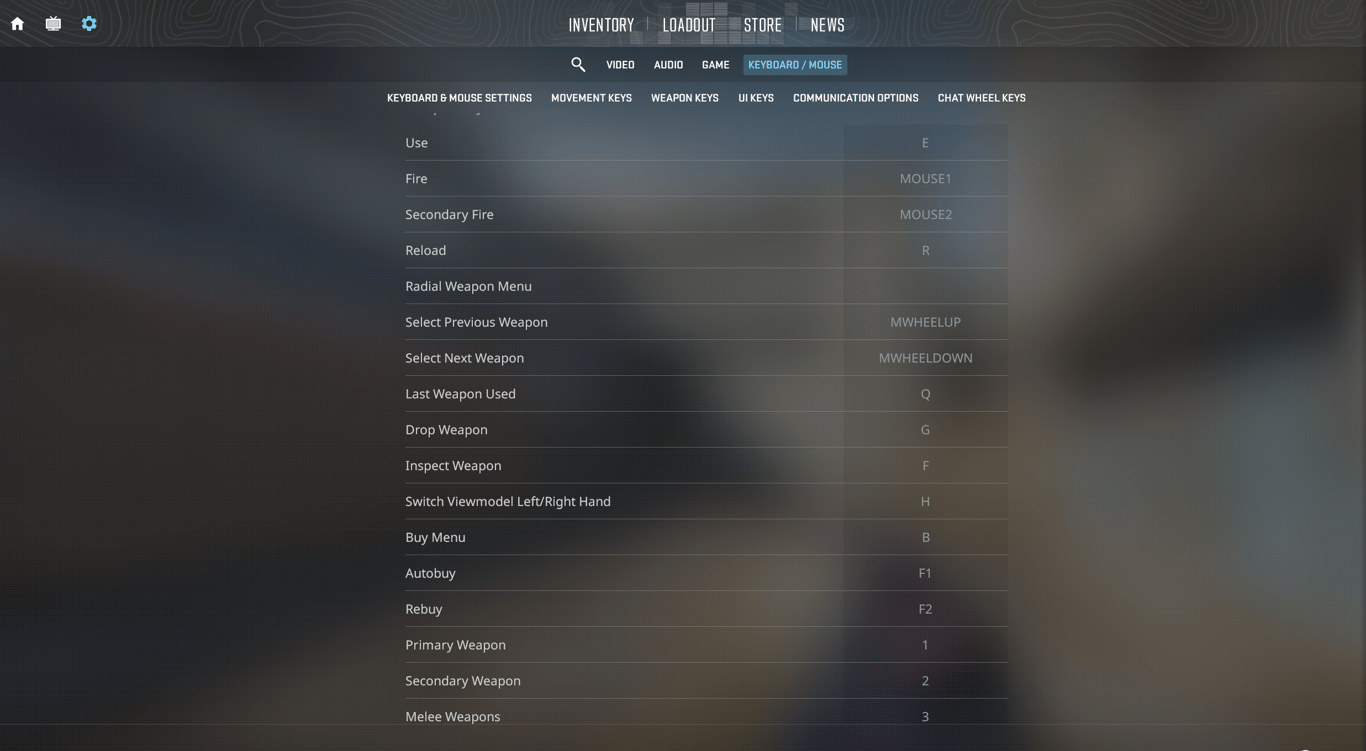
To change your weapon from the right hand to the left hand, you can either go into the in-game settings and select the preferred option there, or use the console command switchhands. Another quick method is the default hotkey, which is H. It’s important to note that hand switching in CS2 works differently compared to CS:GO — when you swap hands, your weapon is briefly re-equipped, causing a short delay before you’re able to fire again.
Pro Player Viewmodel Configs: ZywOo & NiKo
Studying pro player settings is one of the fastest ways to find a solid baseline. Both ZywOo and NiKo use minimal viewmodel configurations that maximize screen space — but there are subtle differences between their setups.
ZywOo (Team Vitality · AWPer / Rifler · #1 HLTV x3)
viewmodel_fov 68
viewmodel_offset_x 2.5
viewmodel_offset_y 0
viewmodel_offset_z -1.5
viewmodel_presetpos 3
cl_righthand 1
viewmodel_bobbing_low 1
NiKo (Falcons Esports · Rifler · Top 5 HLTV All-Time)
viewmodel_fov 68
viewmodel_offset_x 2
viewmodel_offset_y 0
viewmodel_offset_z -1.5
viewmodel_presetpos 2
cl_righthand 1
What Can We Learn?
Both ZywOo and NiKo share several key choices: maximum FOV at 68, a zero Y-offset, and a negative Z-offset of -1.5 to keep the weapon pushed down and out of the way. The main difference is ZywOo's slightly more aggressive X-offset of 2.5 versus NiKo's 2.0 — pushing the weapon slightly further to the right for maximum open screen space.
Both players disable or minimize weapon bobbing to keep their view as stable and distraction-free as possible during movement. This is standard across virtually all competitive-level CS2 players.
How to Apply Viewmodel Settings in CS2
Open CS2 → click the gear icon (Settings) → go to the Game tab → scroll to the Item section. Here you can switch between the Desktop and Classic viewmodel presets, and toggle left or right hand. This is the fastest method but offers limited customization.
Method 2: Developer Console
For full control, use the console. First, make sure it's enabled: Settings → Game → Game → Enable Developer Console set to Yes. Then press the tilde key ~ to open it and type your commands one by one (or paste them as a semicolon-separated string).
viewmodel_fov 68; viewmodel_offset_x 2.5; viewmodel_offset_y 0; viewmodel_offset_z -1.5; viewmodel_presetpos 3; cl_righthand 1; viewmodel_bobbing_low 1
Method 3: autoexec.cfg
Console settings reset after closing the game unless saved in an autoexec file. To make your viewmodel permanent, add all your commands to autoexec.cfg located in your CS2 config folder:
Path:
...\Steam\steamapps\common\Counter-Strike Global Offensive\game\csgo\cfg\autoexec.cfg
Then add “exec autoexec" to your launch options or the file itself to make sure it loads every time the game starts.
Viewmodel & Skins: How Your Setup Affects How Skins Look
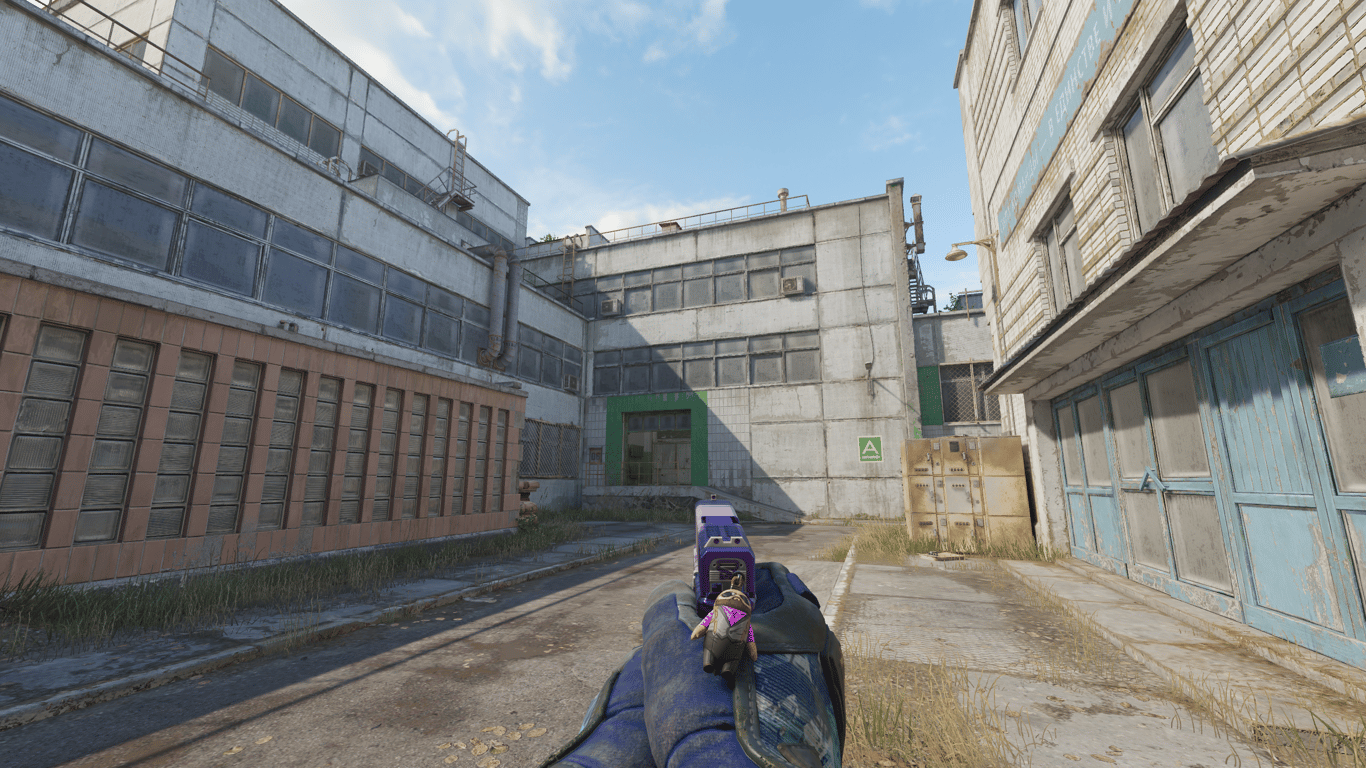
Here's something most players overlook: your viewmodel configuration directly affects how your CS2 skins appear on screen. This is a bigger deal than it sounds.
CS2 weapons have richly detailed finishes — from the chaotic patterns of Fade knives and Dopplers to the intricate artwork on Dragon Lore AWPs and Case Hardened AK-47s. The angle, scale, and position at which the weapon is rendered on your screen changes exactly which portion of the skin's texture is most visible.
What Changes with Viewmodel Settings?
A higher viewmodel_fov pushes the weapon further away and renders it smaller — you see more of the barrel or the full body of the weapon from a distance. A lower FOV brings the weapon up close, making the grip, receiver, and near-body details much more prominent. The X and Z offsets similarly shift which part of the skin pattern is featured most prominently in your peripheral view during gameplay.
For players with expensive or rare skins — think a Butterfly Knife Doppler, a Karambit Fade, or an AK-47 Fire Serpent — experimenting with your viewmodel is genuinely worthwhile. Finding the angle that best showcases the unique pattern on your specific float and seed can make a significant visual difference round after round.
Where to Get CS2 Skins at the Best Prices
Once you've dialed in your viewmodel — especially if you've optimized it to showcase skins beautifully — the natural next step is upgrading your inventory. Not all skin marketplaces are equal, and buying from the right place can save you a significant amount of money.
white.market is one of the most competitive CS2 skin marketplaces available today — consistently offering lower prices than the Steam Community Market, with a fast and secure platform that millions of users trust for buying and selling skins.
Lower prices than Steam
Secure transactions
No trade lock delays
Large selection
Multiple payment methods
Get CS2 Skins Completely Free
Not ready to spend money on skins? There's a legitimate way to get CS2 skins for free — and it's right on the same platform.
white.market regularly runs giveaways where users can win real CS2 skins — completely for free. These range from popular entry-level skins to occasionally rare and high-value items. Participating is simple, and you don't need to spend anything to enter.
Whether you're trying to build your first inventory from scratch or looking to add a new knife to your collection without spending cash, the white.market giveaway section is one of the best legitimate ways to score free CS2 skins in 2026.
How to participate: Head to white.market, create a free account, and check the active giveaways. Requirements vary but are always straightforward — no payment required.
FAQ
What is the viewmodel in CS2?
The viewmodel in CS2 is the first-person representation of your weapon and hands as you see them on screen. It's cosmetic — only you see it, not other players. You can adjust its position, field of view, and bobbing behavior through in-game settings or console commands.
What is the best viewmodel FOV in CS2?
The vast majority of professional and competitive players use viewmodel_fov 68 — the maximum value. This makes the weapon appear smaller and further from the screen center, freeing up the most screen space for visibility. The default is 60, which most pros consider suboptimal.
Does viewmodel affect gameplay or hit registration?
No — the viewmodel has no effect on hit detection, bullet spread, or any game mechanic. It purely changes what you see. However, a better viewmodel can indirectly improve your performance by giving you clearer sightlines and reducing visual distraction.
What are ZywOo's viewmodel settings in CS2?
ZywOo (Team Vitality) uses: viewmodel_fov 68; viewmodel_offset_x 2.5; viewmodel_offset_y 0; viewmodel_offset_z -1.5; viewmodel_presetpos 3 with bobbing disabled. This is a highly minimal setup that maximizes screen visibility, befitting his dual role as an AWPer and rifler.
What are NiKo's viewmodel settings in CS2?
NiKo (Falcons Esports) uses: viewmodel_fov 68; viewmodel_offset_x 2; viewmodel_offset_y 0; viewmodel_offset_z -1.5; viewmodel_presetpos 2. Very similar to ZywOo's but with a slightly less aggressive X-offset, keeping the weapon a touch more centered.
Does viewmodel affect how CS2 skins look?
Yes — significantly. The angle, scale, and position of the weapon on your screen changes which part of the skin texture is most prominently displayed. A lower FOV brings the weapon closer and makes patterns more detailed; a higher FOV shows the full silhouette from further away. If you have a rare skin with a special pattern, experiment with viewmodel settings to find the angle that showcases it best.
How do I make viewmodel settings permanent in CS2?
Add your viewmodel commands to your autoexec.cfg file (located in your CS2 config folder). This file runs automatically when the game starts, applying your settings every session without needing to re-enter them in the console.
Cheapest place to buy skins?
white.market is widely considered one of the most affordable CS2 marketplaces, consistently offering prices below the Steam Community Market. Trusted by millions of users, it's one of the best options for buying skins safely and cheaply. You can also participate in their regular free giveaways to win skins at no cost.
Can I get skins for free?
Yes — white.market regularly runs free giveaways where players can win real CS2 skins without spending anything. Create a free account at white.market and check the active giveaways section to participate.
Should I copy a pro player's exact viewmodel?
Using a pro player's config as a starting point is a great idea — it's been refined over thousands of hours. But personal comfort ultimately matters more than imitation. Take ZywOo's or NiKo's settings as a baseline, then make small adjustments until it feels right for you on your monitor and resolution.